

PowerPoint
The PowerPoint master is now available in the new design. The following essential elements have been changed:
- Use of the technically optimised logo – positive and negative
- Liebherr font
- New secondary colours
- Clear colour coding including colour weighting and particularly harmonious colour combinations
- New brand banner element for title pages
- Use of yellow only if it has a function
- Master documents in English only
- New icons
The most important aspects at a glance
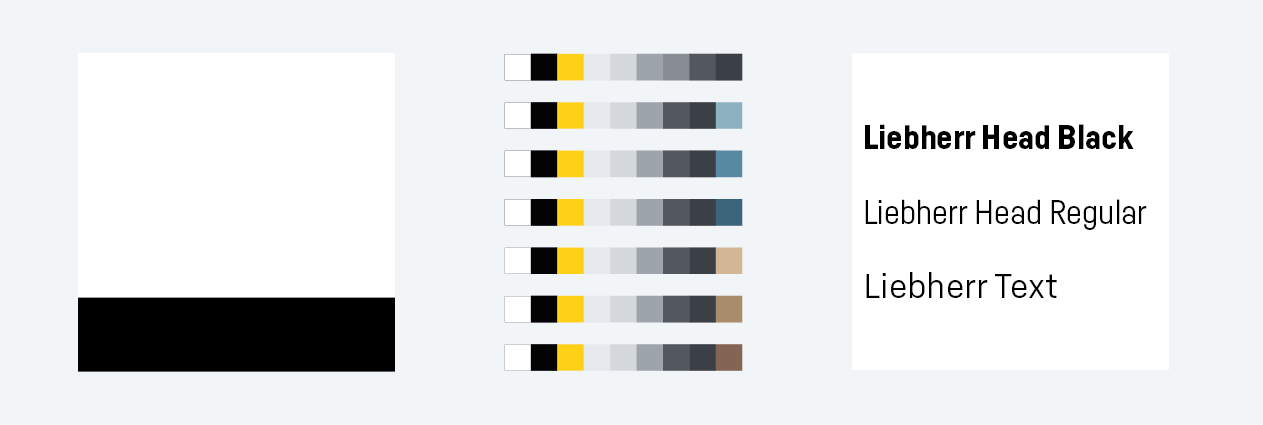
- Please use the primary colour yellow with care. It should only be used when it indicates important content in your presentation. See: Differentiated use of Liebherr Yellow
- Please also take a look at our application examples for a particularly appealing use of the secondary colours and the suggested colour combinations.
-
Please ensure that you have installed the new Liebherr font on your computer. If this has not already been done automatically via your local IT department, download the fonts here: Office Liebherr font (ZIP, 591 KB)
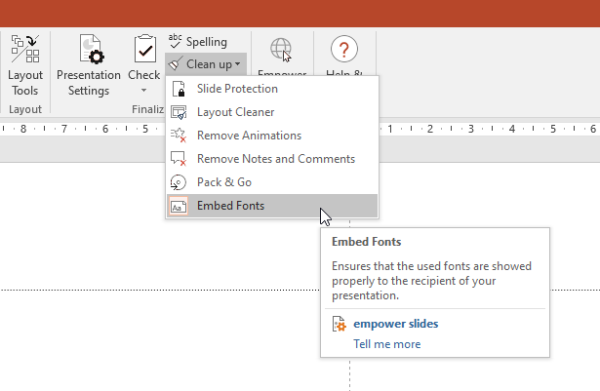
You can download the complete font package under Font. - Activate the ‘Embed fonts’ function once and the Liebherr font will also be displayed correctly in presentations for external partners.
Basic master
The basic master consists of the key slide templates of the Liebherr style guide. It contains basic slides such as the title slide and closing slide, as well as a series of combined text and image placeholders.
The basic master is stored in empower and is therefore available to all Liebherr employees once they have opened PowerPoint. The PowerPoint master and other design templates Template A file template for creating brochures, flyers, Word documents or videos. A template contains ready-made design layouts that can be filled with the user’s text blocks and images. This makes work easier and helps to ensure that a consistent design is presented to the outside world. switch to glossary are currently available in English. The master template in yellow is intended for use by all B2B segments, the blue one by Domestic Refrigeration only.
The permitted format is 16:9. Please ensure that presentations are no longer produced in the 4:3 format.
Since the creation and editing of a PowerPoint presentation that is compliant with the style guide no longer works without the empower software add-in, we have made a basic set of slides available here. This will enable external service providers to create presentations in accordance with the currently valid Liebherr style guide.
Please note the following points:
- The agenda is only included in the basic master as an example slide. It must be edited by an internal employee via empower once the presentation is ready.
- Always run a design check on presentations that have been produced externally and without using empower. Do not assume that external creators always use correct font sizes and the permitted colour combinations.
External service providers can also be supplied with an individual slide set from the complete pool of slides in the Liebherr library at any time. To provide one, combine all of the required slide templates into one presentation and send it to the relevant partner.
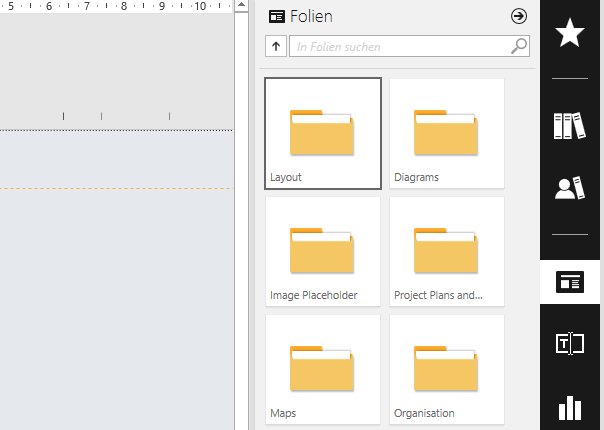
In the 'Corporate Design Templates’ area of the empower library, there are numerous other slide templates that you can use to enrich your presentation with additional layout variants.
Select slide templates from the Layouts, Text boxes, Tables, Matrix, Project timeline, Concept charts, Organigram or Maps areas.
.
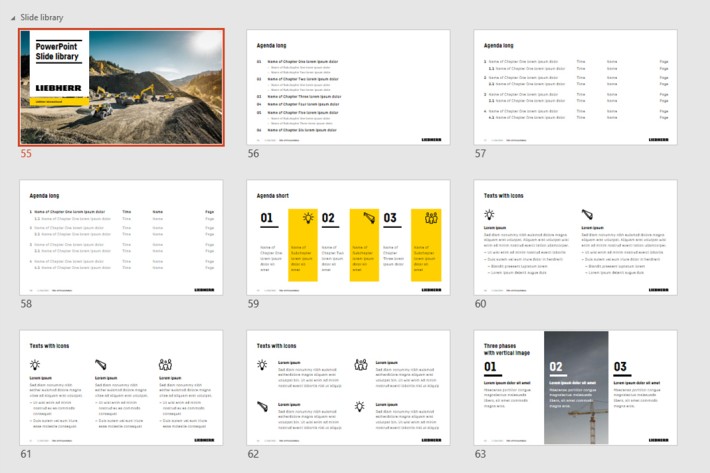
If you need additional layouts that are not currently covered by the library, please contact us using the form below.
Creating a title slide/title slide with brand banner
The creation of a title slide with corresponding adaptation of brand banner and headline is divided into several steps. These are as follows:
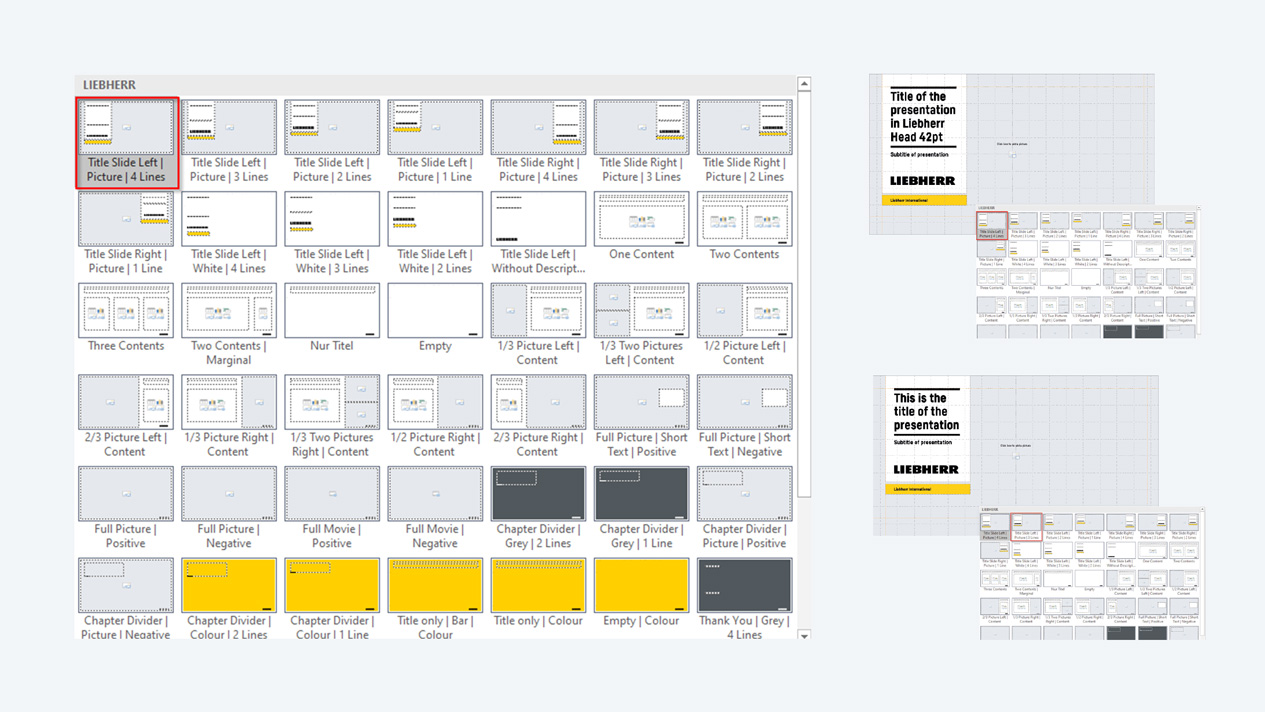
Depending on the image motif, the brand banner element can be arranged on the left or right. You can find pre-designed title slides for this purpose by right-clicking on the slide. Select the Layout item.
You can choose a slide here depending on the image motif and text:
- If you have a lot of text for the title, select for example: ‘Title Side left I Picture I 4 Lines’.
- If you only need three lines, change to ‘Title Side left I Picture 3 Lines’ and the template adjusts automatically.
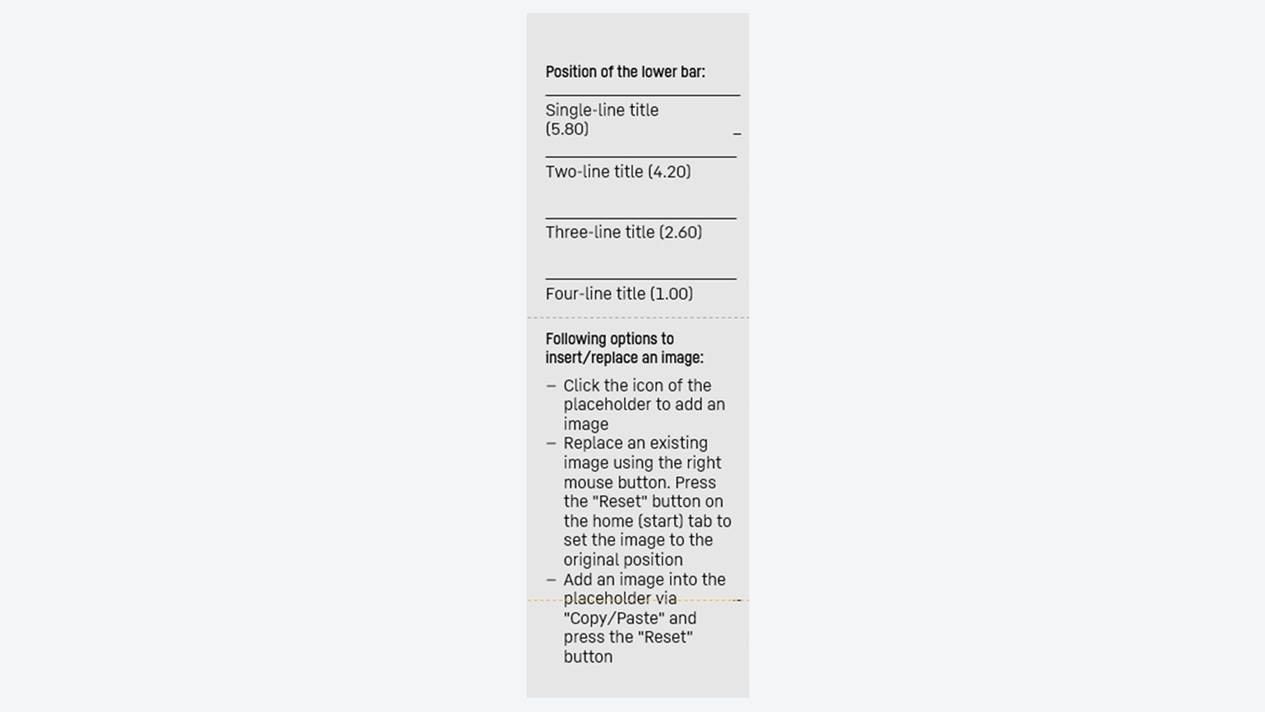
Within the master document, you can see small descriptive hints for working with the new slide set. Scroll to the far left for this. Here, you can find information on how to swap an image or move a headline manually, for example.
If your headline is too short, you can adjust the lines accordingly:
Select the two lines while pressing and holding the ‘Shift’ key. Then right-click on ‘Size and position’.
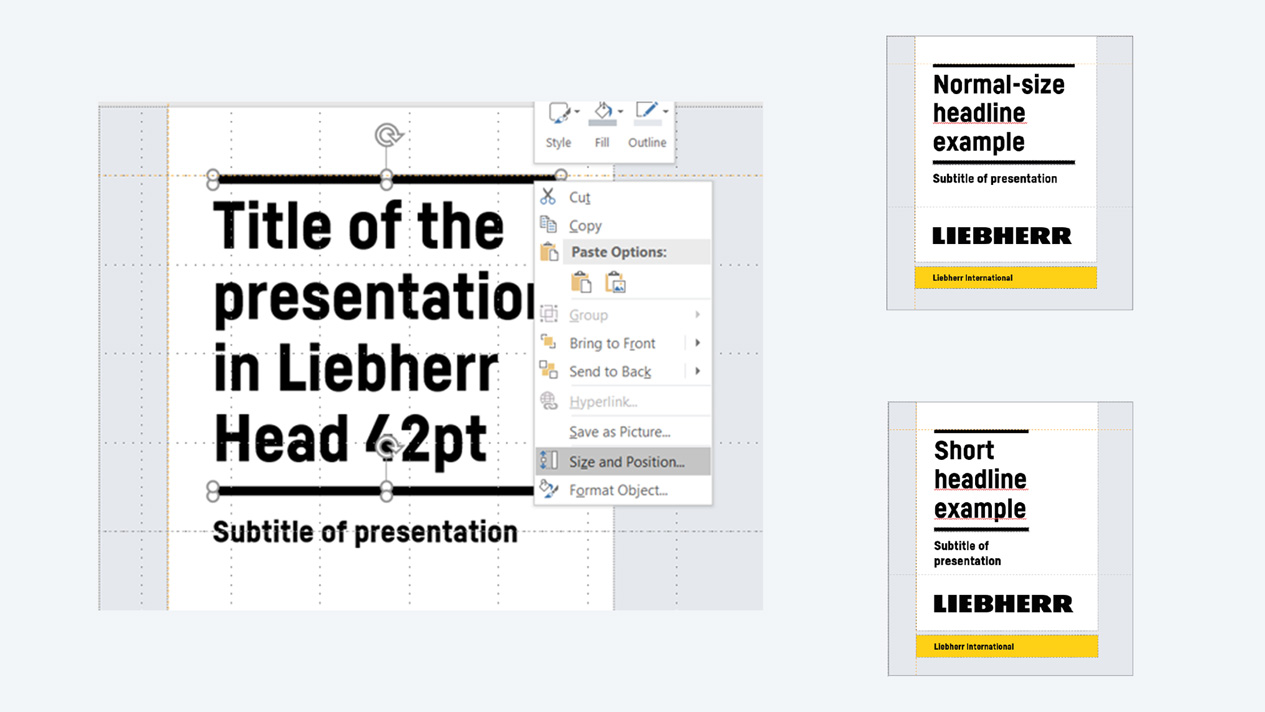
The field for the settings opens. You can shorten the lines manually here. When the headline breaks, the minimum length is reached. The subtitle automatically becomes smaller.

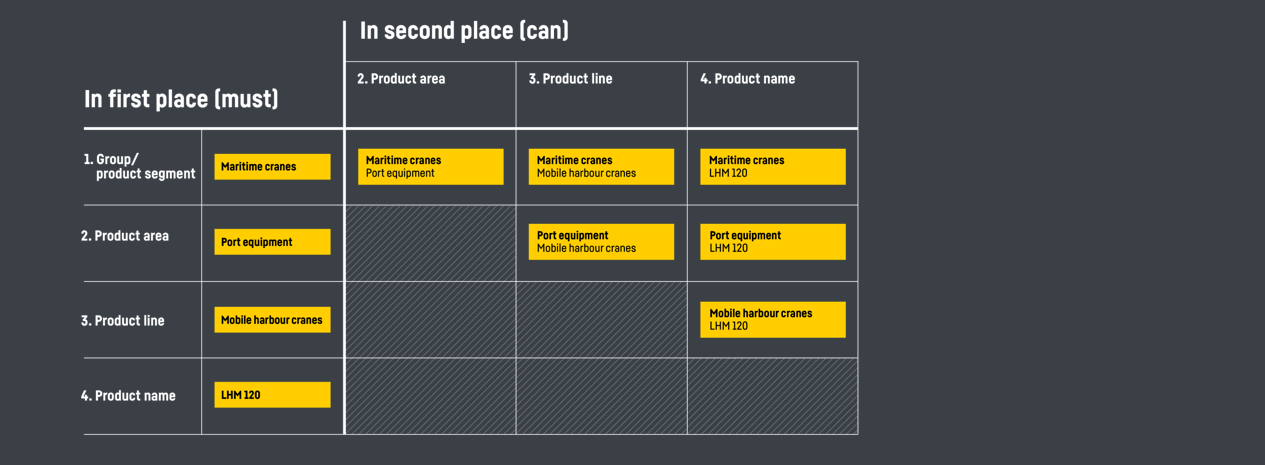
Defined specifications apply to the use of the descriptor.
You can find the content that can be placed in the descriptor here.
Design elements for PowerPoint presentations
In the ‘Corporate Design Templates’ area of the empower library, you can find numerous additional presentation elements from the Liebherr style guide. You can use these design-compliant text elements, charts, tables, symbols and SmartArts to enrich and expand your presentations.
Please note that these design elements are only approved for use in PowerPoint presentations. They are not intended for use in other media.
Good to know:
The slide library and the design elements in the new corporate design are in progress and more will be added to these.
In the ‘Text elements’ area of the ‘Corporate DESIGN Templates’, you can find teasers, speech bubbles, a confidentiality notice and the copyright symbol, for example. You can choose to use these for individual slides or your entire presentation.
Preconceived example charts are stored in empower. You can insert these, and then edit and adapt them to your specific requirements. If you insert charts yourself, please ensure that the colours are either in the permitted greyscale or in the master colour (yellow or blue). According to the new Liebherr style guide, shades of blue and yellow are no longer permitted. Please also use the relevant master colour to highlight specific chart elements.
Predefined tables are stored in empower. If you select these, you can enter any number of rows and columns to get a table that complies with the Liebherr style guide. You can fill this in as you wish.
If you want to emphasise certain sections of the table, please use the preconceived design elements, such as the highlight line or – depending on the master – the yellow or blue fill colour, to highlight a row or column.
The ‘Symbols’ area offers a large selection of approved icons and pictograms which you can use to enrich your presentation. Depending on the master selected, this area also contains the Liebherr division pictograms, as well as a variety of symbols for different applications.
It also contains objects that can be used to symbolise evaluations or trends. Please use the relevant master colour to highlight specific symbol areas in these cases, too.
At present, only a few SmartArts are stored in the empower library. These will be added to gradually. Additional SmartArts templates can be found in the ‘Slides’ section in the Text boxes, Matrix, Project timeline and Concept charts folders.
In the empower image library, you can find a varied selection of Group product photos which can be used as you wish. The image material for the product areas is managed independently by the divisions. Please contact the relevant marketing department if you are missing any specific images.
Contact
If you have any further questions, please do not hesitate to contact us. Please use the contact form provided for this.